how to make google sheets budget tracker to sell: 7 Critical Steps to Build a Profitable Product in 2026

- how to make google sheets budget tracker to sell: 7 Critical Steps to Build a Profitable Product in 2026
- 📋 Key Takeaways
- Table of Contents
- Why You Should Learn How to Make Google Sheets Budget Tracker to Sell
- High Demand for Personal Finance Tools
- 100% Profit Margins and True Passive Income
- Step 1: Define Your Target Audience and Budgeting Style
- Zero-Based Budgeting vs. 50/30/20 Rule
- Niche Down to Stand Out
- Step 2: Set Up the Foundation of Your Spreadsheet
- Creating the Necessary Tabs
- Building the Income and Expense Categories
- Step 3: Add Advanced Formulas (The Engine of Your Tracker)
- Using Data Validation for Dropdown Menus
- The Magic of SUMIF and IFERROR
- Step 4: Design a Premium Dashboard That Buyers Will Love
- Removing Gridlines and Choosing a Color Palette
- Adding Visuals: Donut Charts and Sparklines
- Step 5: Protect Your Sheet and Create a Template Link
- Locking Formulas and Adding a 'Read Me' Tab
- The "/copy" URL Trick
- Step 6: Where and How to Sell Your Budget Tracker
- Setting Up Your Etsy or Gumroad Shop
- Pricing Your Digital Product Competitively
- Step 7: Marketing Your Google Sheets Template
- Pinterest and TikTok Strategies
- Gathering Customer Reviews
- Wrapping It Up: Your Next Steps
- Frequently Asked Questions (FAQ)
- Do I need to pay for a Google Workspace account to create and sell templates?
- Can I sell a Google Sheets template that I bought from someone else?
- What happens if a customer accidentally deletes a formula?
- Can Excel users use my Google Sheets template?
- How do I handle customer support for a digital product?
Picture this: You wake up, check your phone, and see three new email notifications. “You’ve made a sale!” The best part? You were fast asleep when those transactions happened. If you want to know how to make google sheets budget tracker to sell, you are tapping into one of the most lucrative and passive side hustles available today. People are desperately looking for ways to manage their finances, especially with the rising cost of living. They don’t want to pay monthly subscription fees for clunky apps; they want a clean, simple, one-time-purchase spreadsheet that solves their problems instantly.
I remember the first time I tried building a financial template. It was a messy grid of numbers with zero aesthetic appeal. But once I learned the secret sauce of combining basic formulas with beautiful design, everything changed. Creating a digital product doesn’t require a degree in computer science or finance. You just need a solid plan, a bit of creativity, and the willingness to help others organize their money. In this comprehensive guide, we are going to walk through the exact, step-by-step process of building a premium financial dashboard that customers will happily pay for.
📋 Key Takeaways
- Understanding how to make google sheets budget tracker to sell starts with defining a specific target audience, like freelancers or college students.
- You don’t need complex coding skills; basic functions like SUMIF, VLOOKUP, and Data Validation are enough to build a powerful tool.
- Design is just as important as functionality. Removing gridlines, adding cohesive color palettes, and using charts will drastically increase your product’s perceived value.
- Protecting your master file using the “/copy” URL trick ensures your original template remains untouched while customers get their own fresh version.
- Etsy, Gumroad, and Shopify are the best platforms to launch and scale your digital spreadsheet business with nearly 100% profit margins.
Why You Should Learn How to Make Google Sheets Budget Tracker to Sell

Let’s get straight to the point: why spreadsheets? Out of all the digital products you could possibly create, spreadsheets offer a unique blend of high demand and low maintenance. People are experiencing “app fatigue.” They are tired of downloading yet another application that requires an account, a monthly fee, and access to their personal banking data. A standalone spreadsheet offers privacy, control, and customization.
High Demand for Personal Finance Tools
Financial literacy is a massive trend right now. With economic shifts happening globally, individuals are taking their personal finances more seriously than ever. When you figure out how to make google sheets budget tracker to sell, you are essentially providing a stress-relief tool. Buyers are not just paying for cells and rows; they are paying for clarity, peace of mind, and financial organization. According to various market research reports, the personal finance software market is booming, and a significant chunk of that demographic prefers the simplicity of a spreadsheet.
100% Profit Margins and True Passive Income
Here is the real beauty of this business model. If you make physical products, you have to deal with shipping, inventory, raw materials, and supply chain delays. With a digital spreadsheet, you build it once, and you can sell it a million times. Your cost of goods sold (COGS) is practically zero. Aside from the small transaction fees taken by platforms like Etsy or Stripe, the money goes straight into your pocket. It is the ultimate scalable business.
If you love the idea of creating digital assets but want to explore other creative avenues as well, you might want to check out our guide on how to make digital planners to sell: 7 Critical Steps to Build a Profitable Etsy Shop in 2026. Planners and spreadsheets actually complement each other perfectly in an online shop!
Step 1: Define Your Target Audience and Budgeting Style

The biggest mistake beginners make is creating a “generic” budget tracker. If you try to sell a product that appeals to everyone, it will appeal to no one. The secret to standing out in a crowded marketplace is to niche down and solve a specific problem for a specific group of people.
Zero-Based Budgeting vs. 50/30/20 Rule
Before opening Google Sheets, decide on the financial methodology your template will use. Will it be a Zero-Based Budget where every single dollar is assigned a job until the balance is zero? Or will it follow the popular 50/30/20 rule, where 50% goes to needs, 30% to wants, and 20% to savings? Building a tracker around a recognized financial philosophy instantly gives your product authority and makes it easier to market to people who follow those specific methods.
Niche Down to Stand Out
Think about who exactly is sitting behind the screen looking for a solution. Here are a few highly profitable niches you can target:
- Freelancers and Independent Contractors: They need to track variable income, set aside money for taxes, and monitor business expenses.
- Couples Planning a Wedding: A highly emotional and expensive time. A wedding-specific budget tracker can sell for a premium price.
- College Students: They need something simple, focusing on student loans, part-time jobs, and textbook expenses.
- Debt Payoff Enthusiasts: People using the snowball or avalanche method to clear their credit card debt.
When you tailor your approach to how to make google sheets budget tracker to sell around a specific niche, your marketing copy writes itself. You aren’t just selling a spreadsheet; you are selling a “Freelancer Tax and Income Dashboard.”
Step 2: Set Up the Foundation of Your Spreadsheet
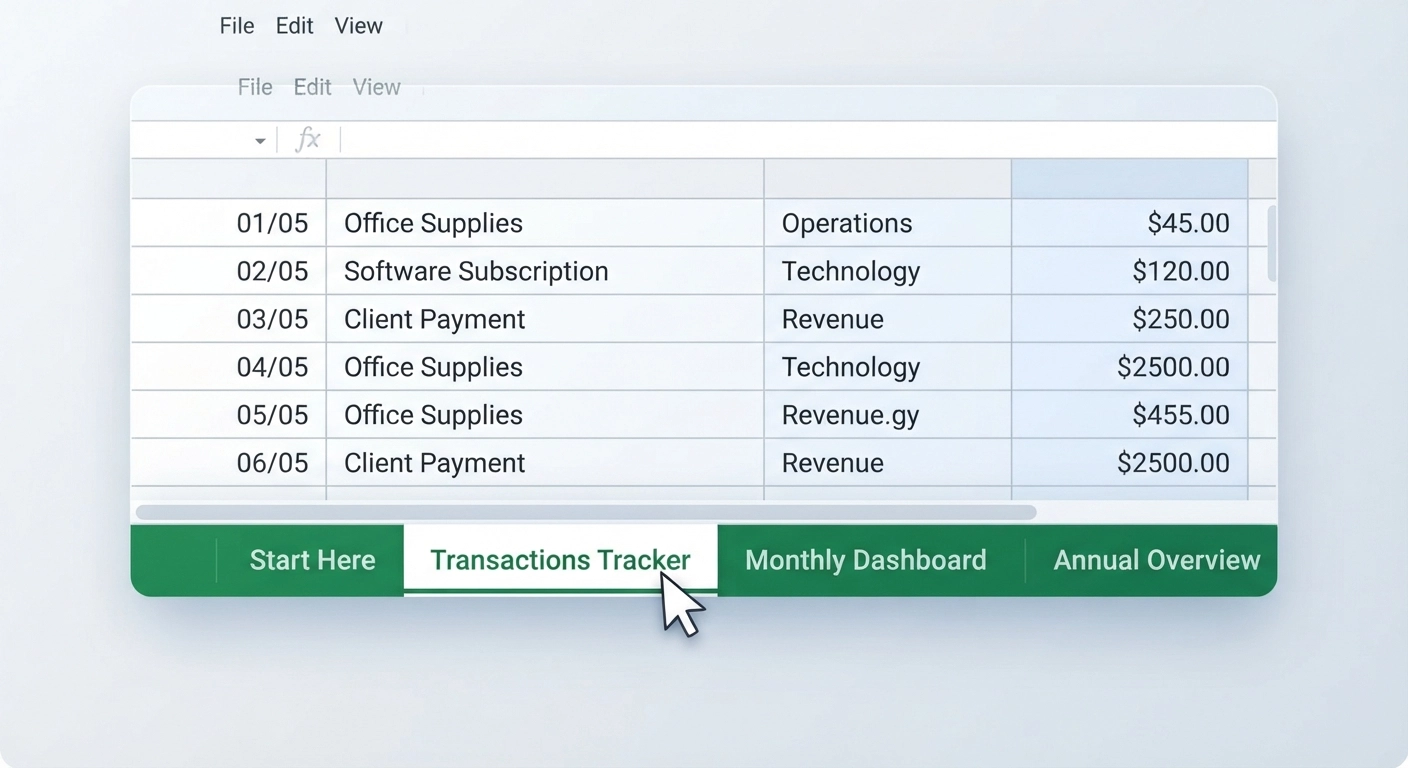
Now it’s time to roll up our sleeves and open a blank Google Sheet. The foundation of your tracker needs to be logical and user-friendly. If a buyer opens your file and feels overwhelmed by a wall of numbers, they will ask for a refund. Structure is everything.
Creating the Necessary Tabs
A professional budget tracker usually consists of three to four main tabs (sheets) at the bottom:
- Setup / Read Me: This is where the user inputs their custom categories (e.g., Groceries, Rent, Utilities) and reads your instructions.
- Transactions: A running log where the user enters every single purchase or income event. It should have columns for Date, Amount, Category, and Notes.
- Monthly Dashboard: The visual hub. This tab pulls data from the Transactions sheet and displays how much was spent in each category versus what was planned.
- Annual Overview (Optional but recommended): A high-level view summarizing the entire year’s financial health.
Building the Income and Expense Categories
On your ‘Setup’ tab, create two simple lists: one for Income Categories (Salary, Side Hustle, Dividends) and one for Expense Categories (Housing, Food, Transportation, Entertainment). Make sure you leave enough blank spaces for the buyer to add their own custom categories later. This flexibility is a huge selling point.
If you enjoy the process of creating structured digital files, you might also find success in other printable niches. Take a look at our detailed tutorial on How to Make Easy Printables Using Canva to expand your product line with matching printable budget planners.
Step 3: Add Advanced Formulas (The Engine of Your Tracker)
What separates a free, amateur spreadsheet from a premium, paid template? Automation. Your buyer should only have to enter a number once, and the spreadsheet should do all the heavy lifting automatically. You don’t need to be a math genius to learn how to make google sheets budget tracker to sell; you just need to master a few key formulas.
Using Data Validation for Dropdown Menus
Nobody wants to type out “Groceries” manually every time they buy food. Dropdown menus prevent typos and make data entry incredibly fast.
To create a dropdown menu in your Transactions tab:
- Select the column where you want the categories to appear (e.g., Column C).
- Go to the top menu and click Data > Data validation.
- Click “Add rule”.
- Under “Criteria”, select “Dropdown (from a range)”.
- Select the range of cells from your ‘Setup’ tab where you listed the expense categories.
- Click Done. Now, your users can simply click an arrow and select their category!
The Magic of SUMIF and IFERROR
The SUMIF function is the undisputed king of budget trackers. It looks at your massive list of transactions, finds all the ones labeled “Rent,” and adds them together on your Monthly Dashboard.
The formula structure looks like this:
=SUMIF(Transactions!C:C, A5, Transactions!D:D)Here is what that actually means in plain English: “Look at Column C in the Transactions tab (where the categories are). If the category matches the word in cell A5 on this dashboard (e.g., ‘Rent’), then add up the corresponding numbers in Column D (the amounts).”
Pro tip: Wrap your formulas in an IFERROR function. If a user accidentally deletes something, instead of showing a scary “#N/A” or “#REF!” error, the cell will just remain blank or show a zero. It makes your template look much more robust and professional.
=IFERROR(SUMIF(Transactions!C:C, A5, Transactions!D:D), 0)Step 4: Design a Premium Dashboard That Buyers Will Love
Let’s be brutally honest: people buy with their eyes. You could have the most mathematically perfect spreadsheet in the world, but if it looks like a corporate tax form from 1995, nobody is going to pay $15 for it. Mastering how to make google sheets budget tracker to sell means becoming a bit of a designer.
Removing Gridlines and Choosing a Color Palette
The very first thing you must do to instantly elevate your spreadsheet is turn off the default gray gridlines. Go to View > Show > Gridlines and uncheck it. Suddenly, your spreadsheet looks like a custom software interface rather than a math homework assignment.
Next, pick a cohesive color palette. Don’t use the default bright red, yellow, and blue. Go to sites like Coolors.co and find a modern, aesthetic palette. Soft sage greens, blush pinks, or sleek minimalistic monochromes perform exceptionally well on Etsy. Apply these colors to your headers, chart backgrounds, and alternating rows.
Adding Visuals: Donut Charts and Sparklines
Numbers tell a story, but charts make that story easy to read. On your Monthly Dashboard, insert a Donut Chart to show the breakdown of expenses.
- Highlight the list of categories and their corresponding total spent amounts.
- Click Insert > Chart.
- In the Chart Editor on the right, change the Chart Type to “Doughnut chart”.
- Customize the colors of the slices to match your chosen palette.
- Remove the chart border and background color so it blends seamlessly into your dashboard.
You can also use the =SPARKLINE() formula to create tiny, elegant bar charts directly inside a single cell to show progress toward a savings goal. It’s a small detail that screams “premium product.”
Speaking of aesthetics and design, if you have a good eye for color and trends, you can apply those same skills to physical crafts. Read our article on DIY Crafts to Make and Sell: 10 Profitable Ideas for 2026 to see how visual appeal drives sales across different markets.
Step 5: Protect Your Sheet and Create a Template Link
You have built a masterpiece. Now, how do you actually deliver it to a customer without them messing up your original file? This is a crucial technical step in learning how to make google sheets budget tracker to sell.
Locking Formulas and Adding a ‘Read Me’ Tab
Before sharing, go through your dashboard and lock the cells that contain formulas. You can do this by right-clicking the cell or range, selecting View more cell actions > Protect range, and setting a warning. This way, if a customer accidentally tries to type over a formula, Google Sheets will pop up a warning asking if they are sure they want to edit it. It saves you from dealing with dozens of customer support emails saying “I broke the spreadsheet!”
Also, include a ‘Read Me’ or ‘Instructions’ tab as the very first sheet. Write a warm welcome message, explain how to use the tracker step-by-step, and perhaps link to a short, unlisted YouTube video where you screen-record yourself using the template.
The “/copy” URL Trick
Never send customers a link that ends in “/edit”. If you do, they will edit your master file, and the next customer will see their private financial data! Instead, use the template trick.
- Click the green “Share” button in the top right corner.
- Under General Access, change it to “Anyone with the link” and set the role to “Viewer” (NOT Editor).
- Copy the link. It will look something like this:
https://docs.google.com/spreadsheets/d/1234567890abcdef/edit?usp=sharing - Paste that link into a notepad. Delete everything from the word
editonwards. - Replace it with the word
copy. - Your new link is:
https://docs.google.com/spreadsheets/d/1234567890abcdef/copy
When a customer clicks this modified link, Google will prompt them with a button saying “Would you like to make a copy of this document?” They click yes, and a brand new, clean version is saved directly to their own Google Drive. Genius, right?
Step 6: Where and How to Sell Your Budget Tracker
Your product is ready. The delivery mechanism is set. Now it’s time to open your digital doors to the world. Figuring out how to make google sheets budget tracker to sell is only half the battle; the other half is actually selling it.
Setting Up Your Etsy or Gumroad Shop
For beginners, Etsy is usually the best starting point. Why? Because Etsy is a search engine with millions of built-in buyers who are actively looking for digital planners and spreadsheets. You don’t have to drive all your own traffic; you just need good SEO.
Gumroad is another fantastic option, especially if you plan to drive traffic from your own TikTok, Instagram, or blog. Gumroad is incredibly easy to set up, allows for “pay what you want” pricing, and handles the digital delivery seamlessly.
To deliver the product on these platforms, you simply create a nicely designed PDF document (using Canva) that says “Thank you for your purchase! Click here to access your spreadsheet.” You hyperlink that text with your special “/copy” URL. The customer buys the product, downloads the PDF, clicks the link, and gets the sheet.
Pricing Your Digital Product Competitively
Pricing can be tricky. If you price too low (e.g., $2), buyers might perceive your tracker as cheap or low-quality. If you price too high (e.g., $40), you might price out beginners. Take a look at the current market on Etsy. Typically, a well-designed, comprehensive budget tracker sells for anywhere between $8 and $18.
Consider offering a “Basic” version for $9 and an “Ultimate Financial Planner Bundle” (which includes a debt snowball calculator, net worth tracker, and sinking funds planner) for $19. Bundles drastically increase your Average Order Value (AOV).
Step 7: Marketing Your Google Sheets Template
You can’t just list your product and pray for sales. To build a sustainable income stream, you need a marketing strategy. Thankfully, digital products are incredibly visual and fun to market.
Pinterest and TikTok Strategies
Pinterest is a goldmine for digital products. Create 5-10 different pin designs using mockups of your spreadsheet. Use titles like “The Best 50/30/20 Budget Template” or “How to Track Your Expenses Easily.” Link those pins directly to your Etsy or Gumroad shop. Because Pinterest is a visual search engine, pins can continue to drive traffic for months or even years after you post them.
TikTok and Instagram Reels are currently the fastest ways to go viral. You don’t even need to show your face. Record a top-down video of your hands typing into the beautiful dashboard. Show the charts automatically updating as you enter an expense. Use a hook like: “Watch me organize my messy finances in 5 minutes using this template.” The visual satisfaction of an automated spreadsheet is highly engaging.
Gathering Customer Reviews
Social proof is everything in e-commerce. When you get your first few sales, reach out to those customers. Send a polite message asking if they are enjoying the tracker and if they have any feedback. A shop with 20 five-star reviews will convert browsing visitors into buyers significantly faster than a shop with zero reviews. Offer exceptional customer service—if someone is confused about a formula, help them fix it. They will reward you with a glowing review.
If you are exploring various ways to build a brand around homemade or self-created products, you might also be inspired by our guide on how to make easy scented candles: 7 Critical Steps You Must Know in 2026. Building a diverse portfolio of skills is the best way to secure multiple income streams!
Wrapping It Up: Your Next Steps
Learning how to make google sheets budget tracker to sell is one of the most rewarding digital side hustles you can start today. You are taking a blank grid and turning it into a powerful, beautiful tool that genuinely helps people take control of their financial lives.
To recap: start by defining exactly who you are building this for. Set up a logical structure with clean tabs. Use formulas like SUMIF and Data Validation to make it automated and smart. Spend time making it visually stunning by removing gridlines and adding charts. Protect your work with the “/copy” link method, and finally, launch it on platforms like Etsy or Gumroad while driving traffic through Pinterest and short-form video.
The first spreadsheet you build might take you a weekend to perfect. But once it’s done, it can generate income for years with zero extra effort. So, open up a new Google Sheet right now, start outlining your categories, and take that first step toward building your digital product empire. You’ve got this!
Frequently Asked Questions (FAQ)
Do I need to pay for a Google Workspace account to create and sell templates?
No, you do not need a paid account. A standard, free personal Google account is perfectly fine for creating, hosting, and sharing your Google Sheets templates. Your customers will also only need a free Google account to use them.
Can I sell a Google Sheets template that I bought from someone else?
Absolutely not. Selling someone else’s template is copyright infringement and unethical. You must build your spreadsheet from scratch, using your own formulas, layout, and design. You can look at others for inspiration, but the final product must be 100% your own creation.
What happens if a customer accidentally deletes a formula?
This is why protecting your cells is crucial. By setting a warning on formula cells, you reduce the risk. However, if they do break it, they can simply click the original download link you provided upon purchase to generate a brand new, clean copy of the spreadsheet.
Can Excel users use my Google Sheets template?
While Google Sheets can be downloaded as an Excel file (.xlsx), complex formulas, data validation, and specific formatting (like checkboxes or certain charts) often break during the conversion. It is highly recommended to state clearly in your product description that the template is strictly for Google Sheets.
How do I handle customer support for a digital product?
Keep it simple. Include a detailed “Read Me” tab with troubleshooting steps and an FAQ section within the spreadsheet itself. If customers email you, respond politely and guide them. Over time, compile the most common questions into your instruction manual to reduce future support requests.