How to Make Easy Printables Using Canva
- How to Make Easy Printables Using Canva
- 📋 Key Takeaways
- Table of Contents
- Understanding the 2026 Printables Market: Why Start Now?
- how to make printables on canva: Setting Up Your Workspace
- Creating a Custom Sized Document
- Choosing the Best Types of Digital Products to Sell
- Top Selling Printable Categories in 2026
- Designing Your First Printable: Step-by-Step Guide
- Step 1: Activating Margins and Print Bleed
- Step 2: Mastering Typography and Font Pairing
- Step 3: Utilizing Grids and Alignment Tools
- Step 4: Creating a Cohesive Color Palette
- Leveraging Canva's 2026 AI Tools for Faster Creation
- Magic Write for Content Brainstorming
- Magic Design and Element Generation
- Preparing and Exporting Your Files for Customers
- The Importance of PDF Print
- RGB vs. CMYK Color Profiles
- Creating a Deliverable Access Document
- How to Price, Mockup, and List Your Canva Printables
- Creating Stunning Mockups
- Pricing Strategies: Avoid the Race to the Bottom
- Writing SEO-Optimized Listings
- Frequently Asked Questions (FAQ)
- Is Canva Free for commercial use?
- Can I use Canva Pro elements in products I sell?
- What size should my printable wall art be?
- Do I need a physical printer to sell printables?
- How much money can I genuinely make selling printables?
- Start Building Your Digital Empire Today
how to make printables on canva: 7 Critical Steps to Build a Profitable Business in 2026 Imagine waking up, checking your smartphone, and seeing a flood of sale notifications that came in while you were fast asleep. That is the undeniable magic of selling digital products, and learning how to make printables on canva is your very first step toward building this reliable passive income stream. Whether you want to pay off student loans, save for a dream vacation, or eventually replace your full-time income, creating digital downloads is one of the most low-risk, high-reward side hustles available in today’s digital economy. In 2026, the global demand for digital planners, minimalist wall art, and educational worksheets continues to skyrocket at an unprecedented rate. The best part? You do not need an expensive graphic design degree or complex software to get started. If you know how to make printables on canva, you already possess the exact tools needed to launch a thriving Etsy shop or an independent e-commerce website. This comprehensive, step-by-step guide will walk you through the entire creative process—from setting up your first blank digital canvas to exporting a high-quality, professional PDF that your future customers will absolutely love.
📋 Key Takeaways
- Canva Free is sufficient to begin, but upgrading to Canva Pro ($18/month in 2026) unlocks essential time-saving tools, premium fonts, and SVG export capabilities.
- Proper market research is non-negotiable. Always validate your printable ideas on platforms like Etsy before spending hours designing them.
- Export settings matter. Always use the “PDF Print” option and select the CMYK color profile if available to ensure your customers get crisp, professional physical copies.
- Embrace the “Analog Meets AI” trend. Combine Canva’s cutting-edge AI generation tools with your unique human creativity to stand out in a crowded market.
Understanding the 2026 Printables Market: Why Start Now?
Before we dive into the technical aspects of the design process, it is crucial to understand why digital products are such a massive opportunity right now. Unlike physical e-commerce, digital products require zero inventory, zero shipping costs, and zero physical storage space. Once you create a file, you can sell it an infinite number of times. According to recent e-commerce statistics, sellers on platforms like Etsy collectively generate billions of dollars annually, with a significant and growing portion of that revenue coming from digital downloads. The barrier to entry is incredibly low, but that also means competition is fierce. To succeed, you cannot simply throw together random shapes on a page. You need a strategy. In 2026, the overarching design trend identified by industry experts is “Analog Meets AI.” Consumers are looking for the perfect blend of modern efficiency and nostalgic, handcrafted human touches. By mastering how to make printables on canva, you can easily tap into these digital distribution networks and offer products that solve real problems for your customers—whether that is organizing their chaotic daily schedules or decorating their bare living room walls.
how to make printables on canva: Setting Up Your Workspace
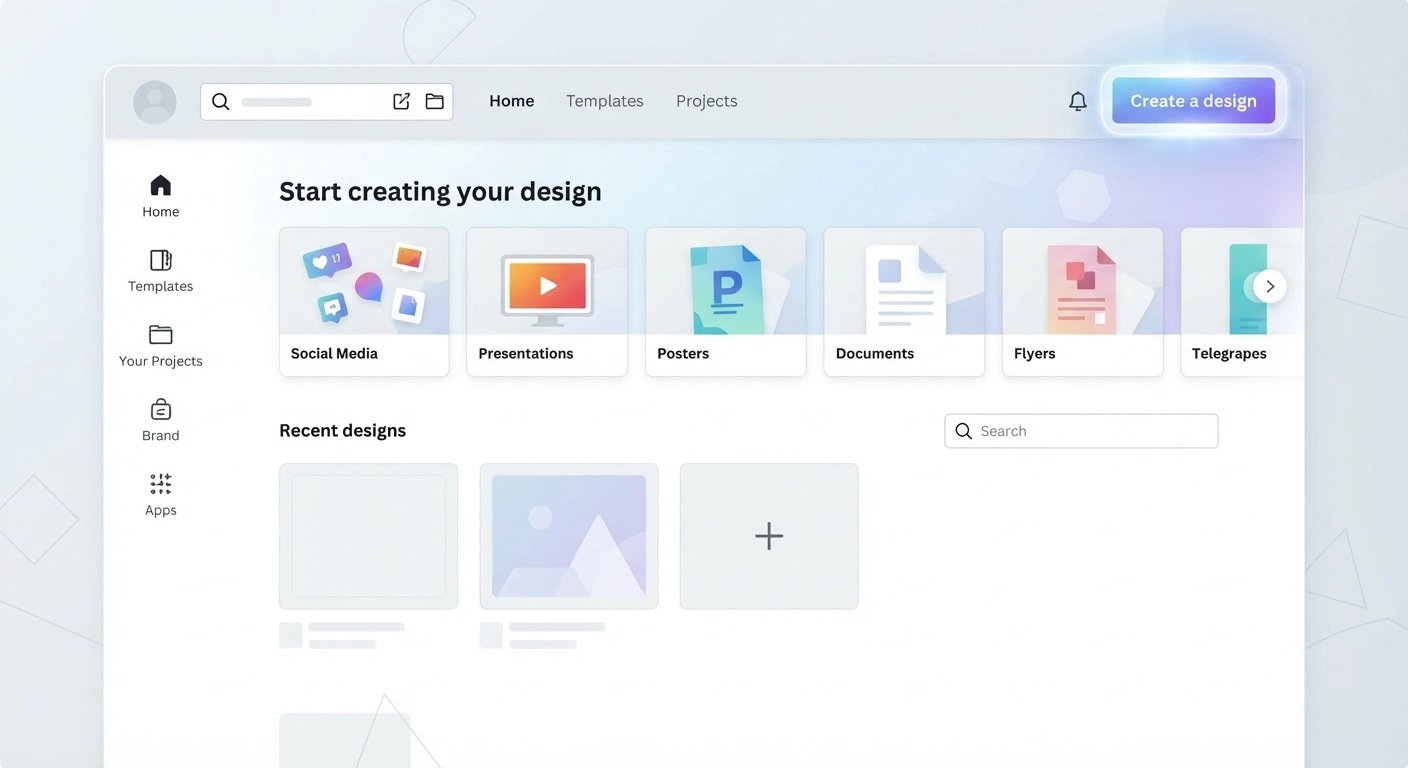
The very first step in your journey is configuring your digital workspace correctly. If you are serious about learning how to make printables on canva, you need to understand the platform’s ecosystem and pricing structures for 2026. Canva offers two main tiers for individual creators: Canva Free and Canva Pro. Canva Free costs absolutely nothing and provides access to millions of templates, fonts, and graphics. It is a fantastic starting point if you are on a strict budget. However, as your business grows, you will likely want to upgrade to Canva Pro, which currently costs $18 per month (or $144 if billed annually). Why upgrade? Canva Pro gives you access to 100GB of cloud storage, the ability to instantly resize designs (a lifesaver when creating multiple sizes of wall art), transparent background exports, and access to premium elements that will make your printables look much more professional.
Creating a Custom Sized Document
When you log into your account, avoid the temptation to just click a random template. Instead, click the “Create a design” button in the top right corner and select “Custom size.” Here are the most common dimensions you will need:
- US Letter: 8.5 x 11 inches (Standard for North American planners and worksheets)
- A4 Document: 210 x 297 mm (Standard for international planners and documents)
- Wall Art Ratios: 4:5 ratio (e.g., 8×10 inches), 3:4 ratio (e.g., 9×12 inches), or 2:3 ratio (e.g., 24×36 inches)
Always ensure the drop-down menu is set to inches (in) or millimeters (mm) rather than pixels (px) when creating printables, as this ensures your document is properly scaled for physical printing.
Choosing the Best Types of Digital Products to Sell
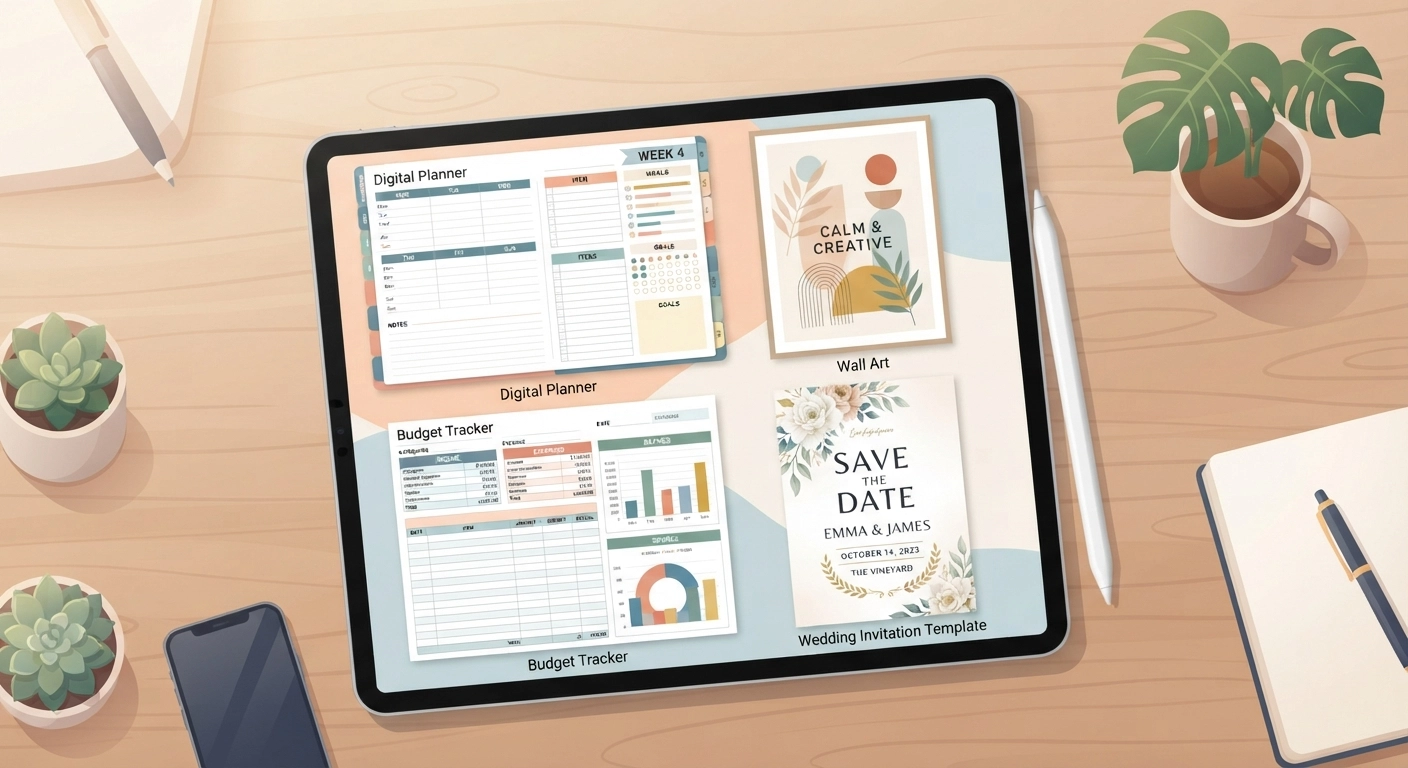
You can have the best design skills in the world, but if you create a product nobody is searching for, you will not make any sales. Before you spend hours figuring out how to make printables on canva, you must identify a profitable niche.
Top Selling Printable Categories in 2026
Based on current market trends, here are the most lucrative categories to explore: 1. Planners and Trackers: People are obsessed with self-improvement and organization. Habit trackers, ADHD daily planners, budget spreadsheets, and fitness logs are incredibly popular. If you are particularly interested in this highly profitable niche, you should definitely check out our comprehensive guide on how to make digital planners to sell: 7 Critical Steps to Build a Profitable Etsy Shop in 2026. 2. Printable Wall Art: Minimalist line art, boho terracotta shapes, and vintage botanical prints are massive sellers. Customers buy the digital file, print it at a local shop, and frame it themselves for a fraction of the cost of physical art. 3. Educational Worksheets: Homeschooling and supplemental education are booming. Tracing letters, math games, and coloring pages for toddlers are evergreen products that sell consistently year-round. 4. Event and Wedding Templates: Bridal shower games, wedding invitations, and bachelorette party itineraries are high-ticket digital items. Brides are always looking for ways to save money without sacrificing aesthetics.
Designing Your First Printable: Step-by-Step Guide
Now comes the fun part. Let’s walk through the exact process of how to make printables on canva from scratch. For this example, let’s assume we are designing a minimalist daily planner.
Step 1: Activating Margins and Print Bleed
Before you place a single line of text on your canvas, you need to set up your safety zones. Go to the “File” menu in the top left, click “View settings,” and turn on “Show margins” and “Show print bleed.” The margin is the dotted line inside your canvas. Keep all important text and graphics inside this line so they don’t get cut off by a home printer. The print bleed is the area outside the canvas; if you have a background color, stretch it all the way to the bleed line to ensure there are no awkward white edges when professionally printed.
Step 2: Mastering Typography and Font Pairing
Typography can make or break your printable. A common rookie mistake is using too many wildly different fonts on one page. Stick to a maximum of two or three fonts per design. For a modern, professional look, pair a bold serif font (like Playfair Display or Lora) for your main headings with a clean sans-serif font (like Montserrat or Source Sans Pro) for your body text and checklists.
Step 3: Utilizing Grids and Alignment Tools
Nothing screams “amateur” louder than misaligned checkboxes and crooked lines. When you are learning how to make printables on canva, the alignment tools are your best friends. Highlight multiple elements (like a row of habit tracker circles), click “Position” at the top, and use the “Tidy Up” feature. This instantly spaces all your elements evenly. It is a massive time-saver that ensures your final product looks mathematically perfect.
Step 4: Creating a Cohesive Color Palette
While many planners are printed in black and white to save on ink, wall art and event invitations rely heavily on color. Use Canva’s “Styles” tab to find pre-made, aesthetically pleasing color palettes. If you are designing wall art, earthy neutrals, sage greens, and muted terracottas are highly trendy in 2026. Printable wall art is a fantastic addition to physical home improvements. If you are looking for physical project ideas to complement your digital art, explore our guide on Easy DIY Room Decor Aesthetic: 15 Minimalist Ideas for 2026.
Leveraging Canva’s 2026 AI Tools for Faster Creation
The landscape of digital design has shifted dramatically with the integration of Artificial Intelligence. To truly master how to make printables on canva today, you must learn how to use these tools to speed up your workflow without losing your personal creative touch.
Magic Write for Content Brainstorming
Stuck on what to include in your 30-day self-care challenge printable? Use Canva’s “Magic Write” feature. Simply type a prompt like, “Give me 30 unique daily self-care tasks for a printable planner,” and the AI will generate the text for you in seconds. You can then easily format this text into a beautiful checklist.
Magic Design and Element Generation
If you need a very specific graphic—say, a watercolor illustration of a vintage typewriter surrounded by pink peonies—and you cannot find it in the standard library, you can use Canva’s AI image generator. Type your prompt, and it will create a unique, commercial-use graphic that no other seller has. However, remember the “Analog Meets AI” trend. Do not rely solely on AI. The most successful sellers use AI to generate base elements, but they arrange, color-correct, and format them with a distinctly human, handcrafted aesthetic. This hybrid approach is the secret to dominating the market in 2026.
Preparing and Exporting Your Files for Customers
You have finished your design, and it looks beautiful on your screen. But mastering how to make printables on canva also means knowing how to deliver a flawless final file to your paying customers.
The Importance of PDF Print
Never export your printables as standard JPGs or PNGs unless you are creating listing mockups. For the actual product file, always click “Share,” then “Download,” and select PDF Print from the dropdown menu. PDF Print is specifically optimized for high-quality physical printing at 300 DPI (Dots Per Inch), ensuring your text is razor-sharp and your graphics are crystal clear.
RGB vs. CMYK Color Profiles
If you have Canva Pro, you will see an option under the PDF Print settings to choose your color profile. – RGB (Red, Green, Blue): Best for digital use (viewing on screens). – CMYK (Cyan, Magenta, Yellow, Key/Black): Best for professional printing. Always select CMYK if your customer is going to print the file. This ensures the colors they see on their screen closely match the ink that comes out of their printer.
Creating a Deliverable Access Document
Platforms like Etsy have a file size limit (usually 20MB per file). If you are selling a massive bundle of 100 planner pages, your PDF will likely exceed this limit. The solution? Upload your large PDF to a cloud storage service like Google Drive or Dropbox. Then, create a simple, single-page PDF in Canva that says, “Thank you for your purchase! Click here to download your files.” Hyperlink the text to your Google Drive folder, export this single page as a Standard PDF, and upload that file to Etsy.
How to Price, Mockup, and List Your Canva Printables
Creating the product is only half the battle. Now you need to convince people to buy it. Understanding how to make printables on canva includes knowing how to package and present your work professionally.
Creating Stunning Mockups
Customers cannot physically touch your digital product, so you must help them visualize it in their lives. A mockup is an image showing your printable in a real-world setting—like a planner page sitting on a wooden desk with a pen, or wall art framed above a living room sofa. You can find free mockup templates right inside Canva. Simply search “frame mockup” or “iPad mockup,” drag your exported design into the smart frame, and you instantly have a professional product photo.
Pricing Strategies: Avoid the Race to the Bottom
It is tempting to price your printables at $0.99 to undercut the competition, but this is a massive mistake. Low prices often signal low quality to buyers. In 2026, a standard single-page planner or tracker should be priced between $2.50 and $4.00. Comprehensive bundles (like a 50-page wedding planner) can easily sell for $15 to $25. Price your items based on the value and transformation they provide, not just the time it took you to make them.
Writing SEO-Optimized Listings
When you upload your product to an e-commerce platform, your title and tags are critical. Do not name your file “Cute Pink Planner.” Instead, use long-tail keywords that buyers are actually typing into the search bar, such as “ADHD Daily Planner Printable, Minimalist Productivity Tracker, A4 and US Letter PDF.” Are you looking to expand your handmade business beyond digital files? We have a fantastic resource on DIY Crafts to Make and Sell: 10 Profitable Ideas for 2026 to help you diversify your shop and offer physical items alongside your digital downloads. Alternatively, if you want to pair your printable gift tags with beautiful handmade decor, learn How to Make Paper Flowers: Step-by-Step Guide for Beginners.
Frequently Asked Questions (FAQ)
As you continue learning how to make printables on canva, you will likely run into a few common questions. Here are the answers to the most frequently asked queries in 2026:
Is Canva Free for commercial use?
Yes, you can use Canva to create and sell digital products commercially. However, you cannot simply take a pre-made Canva template, change the color, and sell it as your own. You must create an original design by combining different elements, fonts, and layouts to make something entirely new.
Can I use Canva Pro elements in products I sell?
Yes, you can use Pro elements in your designs, provided they are integrated into a larger, original composition. You cannot sell a standalone Pro graphic (like a single illustration of a flower) as a digital download. The final product must be a flattened PDF or a flattened image where the individual elements cannot be extracted by the end user.
What size should my printable wall art be?
To provide the best value, you should offer multiple sizes using standard aspect ratios. The most common are the 4:5 ratio (prints 8×10, 16×20), the 3:4 ratio (prints 9×12, 18×24), and the 2:3 ratio (prints 24×36). Providing a zip file with all these sizes ensures your customer can use whatever frame they already own.
Do I need a physical printer to sell printables?
Not at all! That is the beauty of this business model. You are only selling the digital file. The customer is responsible for downloading the file and printing it either on their home printer or at a local print shop like Staples or FedEx.
How much money can I genuinely make selling printables?
Income varies wildly based on your niche, the quality of your designs, and your SEO strategy. While some beginners make $50 a month, many consistent sellers who treat this as a real business earn between $1,000 and $5,000+ per month in passive income. Success requires patience, consistent uploading, and adapting to market trends.
Start Building Your Digital Empire Today
Learning how to make printables on canva is no longer just a fun weekend hobby; it is a legitimate pathway to financial freedom and creative independence. By understanding your target audience, utilizing the right canvas dimensions, mastering typography, and exporting high-quality files, you are setting yourself up for long-term success in the digital marketplace. Remember, every successful Etsy seller or digital entrepreneur started with zero sales and a blank canvas. The most important step is simply to begin. Open up Canva today, experiment with some fonts and shapes, and create your very first digital product. If you are ready to take your digital product journey to the next level and want to focus on one of the most profitable niches available, do not miss our ultimate guide on how to make digital planners to sell: 7 Critical Steps to Build a Profitable Etsy Shop in 2026. Your future self will thank you for starting today!