Cricut vs Silhouette: Which is Best for Easy DIY Projects?
- Cricut vs Silhouette: Which is Best for Easy DIY Projects?
- 📋 Key Takeaways
- Table of Contents
- Understanding the Core Differences: Cricut vs Silhouette at a Glance
- Cricut vs Silhouette for Beginners: Which Software Is Actually Easier to Learn?
- The Case for Cricut Design Space: Comfort Over Control
- The Case for Silhouette Studio: Freedom at a Cost
- Which Software Should Beginners Choose?
- Beginner-Friendly Projects: What Each Machine Can Actually Make
- Projects Cricut Excels At for Beginners
- Projects Silhouette Excels At for Beginners
- The Project Sweet Spot: Where Both Machines Deliver
- The Real Cost Breakdown: Hidden Fees Nobody Talks About
- Cricut's Hidden Costs
- Silhouette's Hidden Costs
- Quick Cost Comparison Over 3 Years
- Blade Systems, Cutting Force, and Material Compatibility
- Cricut's Adaptive Tool System
- Silhouette's Multi-Tool Carriage
- Community, Support, and Learning Resources: Where Will You Get Help?
- The Cricut Community
- The Silhouette Community
- Final Verdict: Which Cutting Machine Should Beginners Buy in 2026?
- Buy a Cricut If...
- Buy a Silhouette If...
- My Personal Pick for Most Beginners
- Frequently Asked Questions
- Which is better for a complete beginner, Cricut or Silhouette?
- Is Silhouette harder to learn than Cricut in 2026?
- Can you use Cricut designs on a Silhouette machine?
- Do I need an internet connection to use Cricut or Silhouette?
- Which has a better Print Then Cut feature for sticker making?
- Is Cricut worth the subscription cost for beginners?
- Which machine is better for starting a small craft business in 2026?
- What's the difference between the Cricut Explore 3 and the Maker 3 for a beginner?
- 🔗 İlgili İçerikler
Cricut vs Silhouette for Beginners: 9 Proven Insights for Choosing Your Perfect Cutting Machine in 2026
Picture this: you’ve been scrolling through Instagram reels of gorgeous custom t-shirts, personalized tumblers, and intricate paper crafts. The spark is lit. You’re ready to buy your first cutting machine. But there’s one problem — every search for cricut vs silhouette for beginners pulls you deeper into a rabbit hole of conflicting opinions, technical jargon, and passionate Reddit debates that make your head spin.
I’ve been there.
About six years ago, I stood in a craft store aisle for nearly 45 minutes, phone in one hand, reading reviews, completely paralyzed by the choice. Since then, I’ve used both machines extensively — teaching workshops, running a small Etsy side hustle, and helping hundreds of beginners decide which machine actually fits their life. The truth? Neither machine is universally “better.” But one of them is almost certainly better for you.
Let’s cut through the noise so you can stop researching and start creating.
📋 Key Takeaways
- Cricut prioritizes simplicity with a locked-down software ecosystem; Silhouette offers deeper design freedom but has a steeper learning curve.
- For a complete beginner with no design experience, Cricut gets you crafting in under 30 minutes — Silhouette may take a weekend to feel comfortable.
- Silhouette machines generally cost 15–25% less upfront, but Cricut Access subscription can offset software costs for heavy crafters.
- If you ever want to sell your crafts or use third-party design files, Silhouette’s software flexibility becomes a major long-term advantage.
- Both machines cut vinyl, cardstock, and iron-on perfectly — the real differentiator is how you interact with the software day-to-day.
Understanding the Core Differences: Cricut vs Silhouette at a Glance
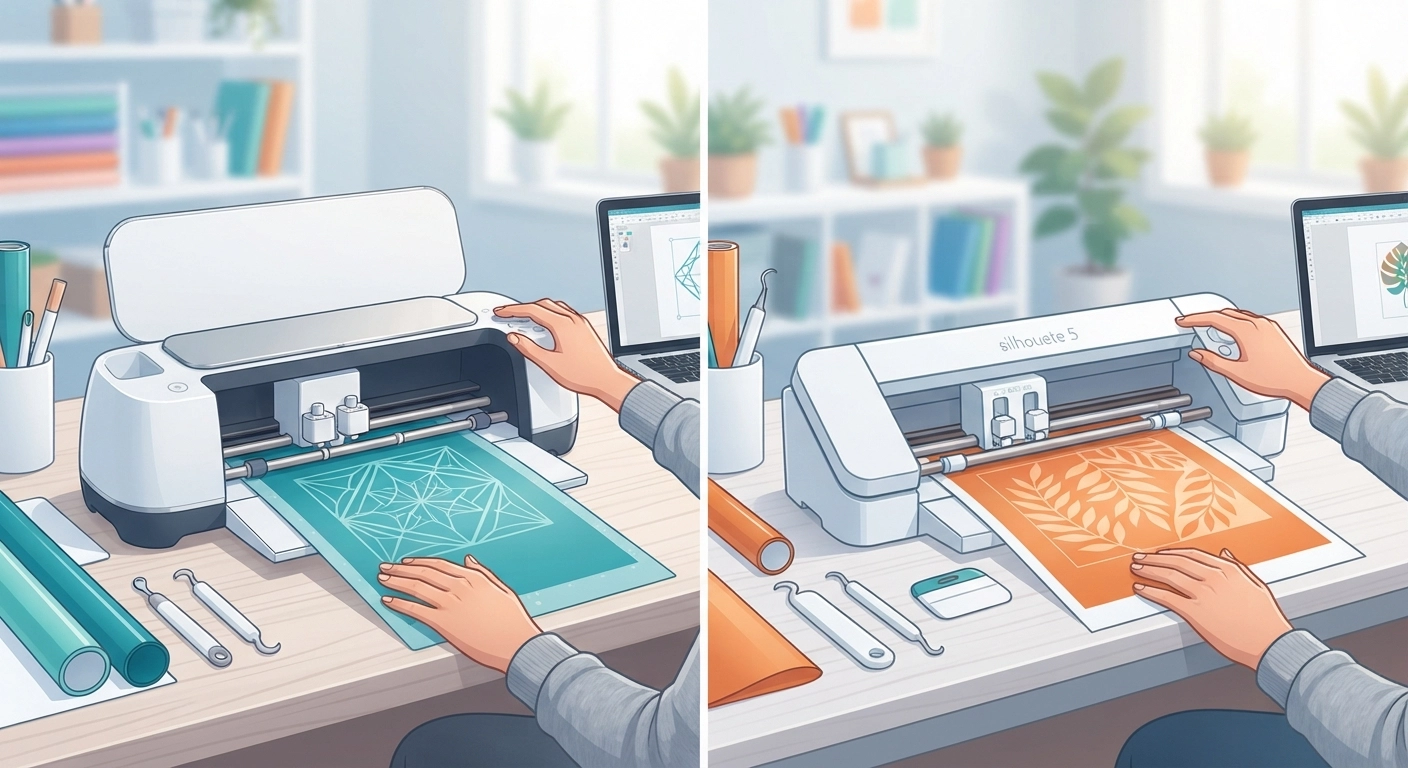
Before we dive into the nitty-gritty, let’s get oriented. Both Cricut and Silhouette are die-cutting machines — essentially, computer-controlled blades that slice through materials like vinyl, cardstock, fabric, and even thin wood. They’re the backbone of modern DIY crafting, used for everything from custom wedding signage to small-batch product labels.
But the philosophies behind these two brands couldn’t be more different.
Cricut, founded in 1969 and now headquartered in Utah, built its reputation on the idea that crafting should be plug-and-play simple. Their Design Space software is cloud-based, meaning you need an internet connection to use it. Every project lives online. The trade-off? You get a curated, beginner-friendly experience with guardrails that prevent you from making mistakes — but also prevent you from doing certain advanced things.
Silhouette, a brand under Graphtec (a Japanese company with deep roots in industrial cutting technology since 1984), takes the opposite approach. Silhouette Studio is a full desktop application that works offline and gives you pixel-level control over your designs. It’s closer to professional vector software than a crafting app. For beginners, this can feel overwhelming. For people who want to grow into advanced techniques, it’s liberating.
Here’s how the current flagship models compare as of 2026:
| Feature | Cricut Maker 3 | Silhouette Cameo 5 |
|---|---|---|
| Price (MSRP, 2026) | $399 | $329 |
| Max Cutting Width | 12 inches | 12 inches (up to 24 inches with larger mat) |
| Cutting Force | 4,000 grams | 5,000 grams |
| Software | Cricut Design Space (cloud-based) | Silhouette Studio (desktop, offline-capable) |
| Bluetooth | Built-in | Built-in (plus USB and Ethernet) |
| Print Then Cut | Yes (max 9.25″ x 6.75″) | Yes (no strict size limit with registration marks) |
| Matless Cutting | Yes (Smart Materials) | Yes (built-in roll feeder, no proprietary materials needed) |
| Third-Party Design Compatibility | Limited (SVG uploads, no DXF) | Full (SVG, DXF, PNG, JPEG, and more) |
Both companies also offer smaller, budget-friendly models — the Cricut Joy Xtra (around $199) and the Silhouette Portrait 4 (around $199) — which are excellent for beginners who primarily want to make cards, labels, and small decals. If you’ve been eyeing those, our Cricut Joy vs Maker 3 comparison breaks down the compact options in detail.
Cricut vs Silhouette for Beginners: Which Software Is Actually Easier to Learn?
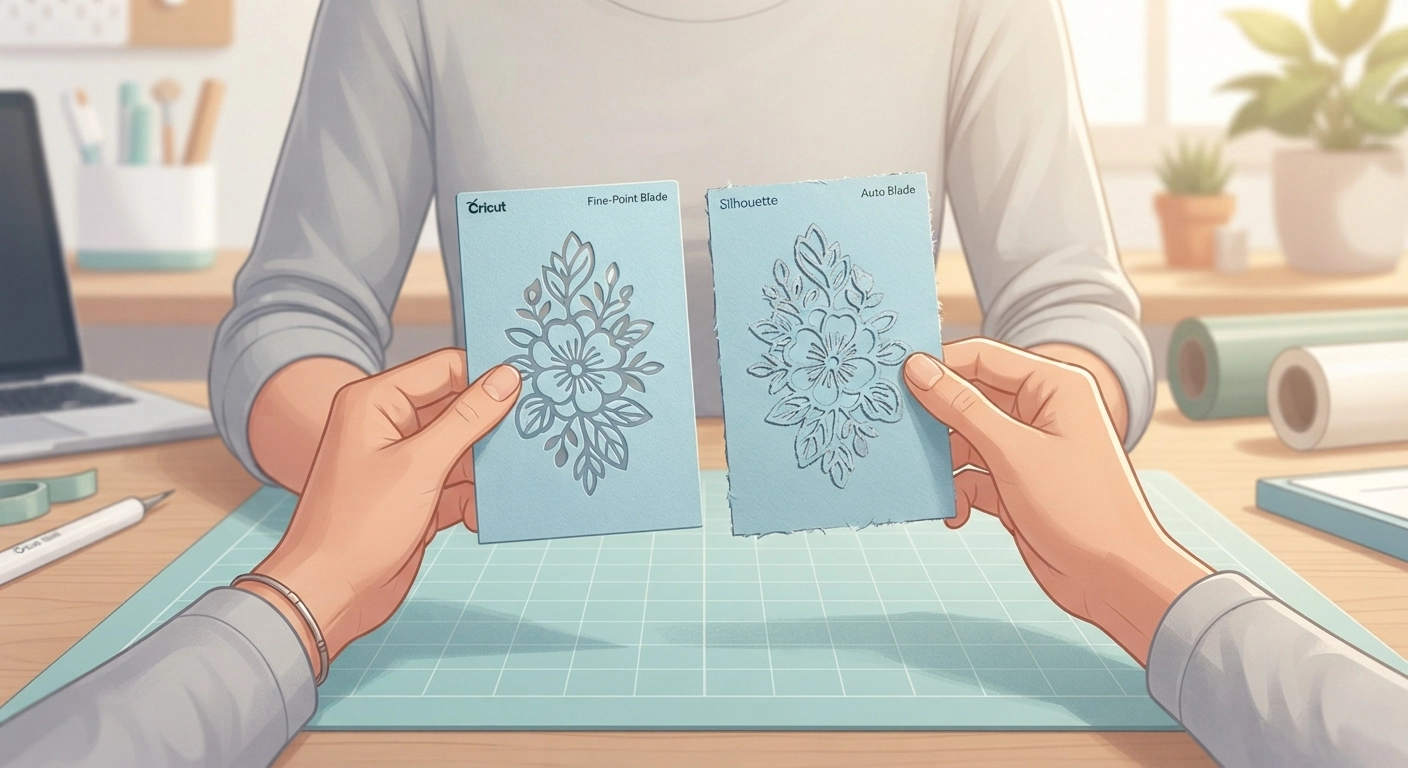
Here’s the thing no one tells you: the hardware on both machines is excellent. The blades are sharp, the motors are precise, and the cut quality on vinyl and cardstock is nearly indistinguishable. The real battleground — and the single factor that will determine whether you love or hate your machine — is the software.
The Case for Cricut Design Space: Comfort Over Control
I remember unboxing my first Cricut. Within 22 minutes, I had designed and cut a simple vinyl decal. The interface guides you like a friendly GPS — pick a template, type your text, choose a font, and hit “Make.” Design Space holds your hand through every step.
Cricut’s philosophy is clear: remove the friction. The software automatically positions your design on the cutting mat, suggests material settings, and even tells you which blade to use. It’s genuinely hard to mess up.
But here’s the flip side. Design Space is entirely cloud-dependent. No internet? No crafting. Server goes down (and yes, it has happened during holiday craft marathons)? You’re dead in the water until it comes back. Plus, the design tools are intentionally simplified — you won’t find advanced path editing, node manipulation, or true layer controls here. If your creative vision exceeds what the pre-built templates offer, you’ll quickly hit a ceiling.
Think of it this way: Design Space is like using Canva — intuitive, fast, and great for 90% of what most people need. But when you need Photoshop-level control, you’ll feel constrained.
The Case for Silhouette Studio: Freedom at a Cost
Silhouette Studio is a different beast entirely. When I first opened it, I won’t lie — I stared at the screen for a solid 10 minutes wondering where to even begin. Toolbars everywhere. Panels. Tabs. Numbers that go to three decimal places. It feels like stepping from a cozy craft room into a professional print shop.
But here’s what I’ve learned after helping dozens of beginners navigate this software: the learning curve is real, but it’s also finite. Spend a dedicated weekend watching tutorials and doing practice projects, and the interface starts to make beautiful sense. By week two, you’ll be doing things Design Space users can only dream of — custom offset paths, complex compound shapes, true weld operations, and precise node-by-node editing.
The offline capability alone is a game-changer. Crafting during a power outage? On a road trip? In a cabin with spotty WiFi? No problem. Silhouette Studio works anywhere.
Plus, Silhouette Studio comes in multiple tiers:
- Free Edition — Basic design tools, cuts pre-made designs perfectly
- Designer Edition ($50 one-time) — Unlocks SVG import, advanced text tools, layers
- Designer Edition Plus ($75 one-time) — Adds even more import formats and tools
- Business Edition ($100 one-time) — Full commercial license, multi-machine support
Notice something? One-time payments. Not monthly subscriptions. We’ll circle back to this in the cost breakdown section because it matters enormously.
Which Software Should Beginners Choose?
If you’ve never touched design software before and just want to make cute t-shirts this weekend, Cricut Design Space will get you there faster. The templates alone — thousands of pre-designed projects ready to cut with one click — are a massive shortcut.
If you’re someone who learns software quickly, has even a little design curiosity, or thinks you might want to create and sell your own SVG files someday, Silhouette Studio is the smarter long-term investment. The skills you build in Silhouette Studio transfer surprisingly well to professional tools like Adobe Illustrator and Affinity Designer.
One more thing: I’ve watched too many crafters buy a Cricut, outgrow it within 8 months, and then have to sell it at a loss to switch to Silhouette. That’s an expensive lesson. Choose based on where you’ll be a year from now, not just where you are today.
Beginner-Friendly Projects: What Each Machine Can Actually Make
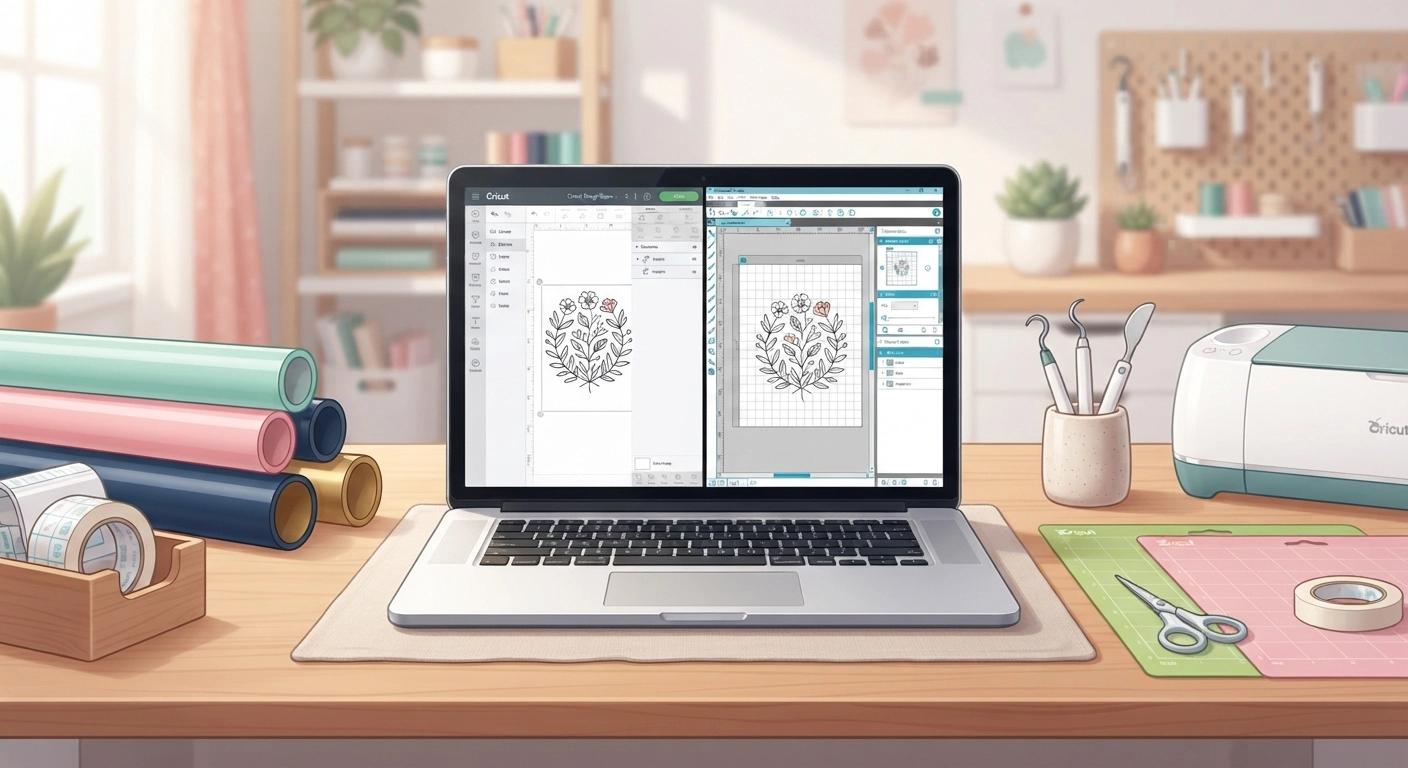
Let’s get practical. What do you actually want to make? Because the answer might push you decisively toward one machine.
Projects Cricut Excels At for Beginners
Cricut has absolutely nailed the ready-to-make experience. Their Design Space library contains thousands of projects where you literally click “Make It” and feed materials into the machine. For making custom shirts with iron-on vinyl, personalized mugs, greeting cards, and simple home decor, Cricut’s ecosystem is unmatched.
The Smart Materials system is genuinely brilliant for beginners. Cricut’s Smart Vinyl and Smart Iron-On come on rolls that feed directly into the machine — no cutting mat required. Matless cutting sounds like a small convenience, but it eliminates one of the most frustrating beginner mistakes: improperly loading the mat and ruining a cut. I’ve seen beginners go from box to finished project in under 15 minutes using Smart Materials.
Cricut’s Print Then Cut feature is also remarkably polished for sticker making. The machine reads printed registration marks and cuts around your designs with impressive accuracy. If your dream is selling Cricut-made stickers on Etsy, this feature alone might seal the deal.
Projects Silhouette Excels At for Beginners
Silhouette shines brightest when you want to work with your own designs or use files from third-party designers. The PixScan mat technology lets you place scraps of material randomly on a mat, take a photo with your phone, and have the machine cut precisely around your pre-printed designs. For maximizing material usage — a big deal if you’re selling crafts — this is brilliant.
The Print Then Cut flexibility on Silhouette is notably better than Cricut’s. Silhouette doesn’t impose the same strict size limits. You can fill an entire letter-size sheet with stickers and the machine will find every single registration mark. For making custom stickers on a Silhouette Cameo, the workflow is professional-grade.
Silhouette also handles longer continuous cuts more elegantly because the Cameo 5 has a built-in roll feeder. Want to cut a 10-foot vinyl banner without manually feeding material? Silhouette handles it. Cricut’s Smart Materials can do longer cuts too, but you’re locked into buying their proprietary (and more expensive) material rolls.
The Project Sweet Spot: Where Both Machines Deliver
For these beginner-friendly projects, you truly can’t go wrong with either machine:
- Vinyl decals for walls, laptops, and water bottles
- Iron-on (HTV) designs for t-shirts and tote bags
- Custom greeting cards with intricate cut details
- Scrapbook embellishments and paper crafts
- Party decorations and banners
- Pantry labels and home organization tags
If you’re interested in organization projects specifically, our Cricut pantry labels guide walks through a complete beginner-friendly labeling project.
The Real Cost Breakdown: Hidden Fees Nobody Talks About
Upfront machine prices are the bait. The ongoing costs are where things get interesting — and where many beginners get surprised.
Cricut’s Hidden Costs
The Cricut Maker 3 at $399 seems reasonable until you realize Design Space’s best features are locked behind Cricut Access. The free version of Design Space gives you a handful of fonts and project templates. The full library — over 700 fonts, 100,000+ images, and thousands of ready-to-make projects — requires Cricut Access at $9.99/month or $95.88/year.
Over three years, that’s nearly $288 in subscription fees. Add in the cost of Cricut-branded materials (Smart Materials cost about 20–30% more than generic alternatives), and the total cost of Cricut ownership creeps up significantly.
But wait — Cricut Access does include a 10% discount on all Cricut.com purchases and priority member support. If you buy a lot of materials through their site, the math can work in your favor.
Silhouette’s Hidden Costs
Silhouette’s pricing model is refreshingly transparent by comparison. The hardware costs less upfront (Cameo 5 at $329 versus Maker 3 at $399), and Silhouette Studio’s free version handles basic cutting perfectly well. The software upgrades — Designer Edition, Designer Edition Plus, Business Edition — are one-time purchases. Pay once, own forever.
Silhouette does have a design store with paid content, and their subscription (Silhouette Design Store) is optional — not baked into the core software experience. You can absolutely use third-party SVGs from Etsy, Creative Market, or your own designs without paying Silhouette a dime beyond the initial machine purchase.
The material flexibility is another cost-saver. Silhouette machines work happily with third-party vinyl, cardstock, and specialty materials. You’re never locked into a proprietary ecosystem. Over a year of regular crafting, the material savings alone can exceed $100.
Quick Cost Comparison Over 3 Years
| Cost Factor | Cricut Maker 3 | Silhouette Cameo 5 |
|---|---|---|
| Machine (MSRP) | $399 | $329 |
| Software (3 years) | ~$288 (Access subscription) | $0–$100 (one-time upgrade) |
| Starter Materials Bundle | $50–$80 | $40–$60 |
| Replacement Blades (3 years) | $40–$60 | $30–$50 |
| Estimated 3-Year Total | $777–$827 | $399–$539 |
The numbers tell a clear story: Silhouette typically saves you $250–$450 over three years. That’s enough to buy a nice heat press, a substantial material stash, or even a second machine.
Blade Systems, Cutting Force, and Material Compatibility
Both machines use interchangeable blades for different materials, but the systems work quite differently.
Cricut’s Adaptive Tool System
Cricut’s Maker series uses what they call the Adaptive Tool System — a carriage that accepts specialized tools for different tasks. Beyond the standard fine-point blade, you can swap in:
- Rotary Blade — For fabric cuts without backing material (a genuine innovation)
- Knife Blade — For thick materials like balsa wood (up to 2.4mm), chipboard, and leather
- Scoring Wheel — Creates perfect fold lines on cards and 3D paper projects
- Engraving Tip — Etches designs onto metal, acrylic, and glass
- Debossing Tip — Presses designs into cardstock and leather
The rotary blade is genuinely game-changing for fabric crafters. Cutting felt, cotton, and even denim without iron-on backing is something Silhouette can’t match natively.
Silhouette’s Multi-Tool Carriage
The Cameo 5 features a dual-carriage system — one holds the cutting blade, the other can hold a secondary tool (pen, embosser, or second blade for kiss-cutting stickers). The Cameo 5’s AutoBlade is a clever piece of engineering: it automatically adjusts its depth based on material settings you select in the software. No manual blade adjustments, no test cuts needed.
The Cameo 5 packs 5,000 grams of cutting force versus the Maker 3’s 4,000 grams. In practical terms, this means Silhouette handles thicker materials with slightly more authority. Both machines can cut:
- Vinyl (adhesive and heat transfer)
- Cardstock and paper (up to 100 lb / 270 gsm)
- Faux leather and thin genuine leather
- Craft foam and felt
- Vellum and acetate
- Magnetic sheets
The Cricut Maker’s rotary blade gives it an edge on fabric without backing, while Silhouette’s higher cutting force gives it an edge on denser materials. For 85% of beginner projects, both machines perform identically.
Community, Support, and Learning Resources: Where Will You Get Help?
When you’re staring at a weeding tool at 11 PM, wondering why your intricate design keeps tearing, you need someone to help. Fast.
The Cricut Community
Cricut’s community is massive and beginner-centric. Facebook groups like “Cricut for Beginners” have hundreds of thousands of members. YouTube is flooded with Cricut tutorials — search any project type and you’ll find 50+ walkthroughs. The official Cricut blog and Design Space itself are packed with guided projects that hold your hand.
The sheer volume of Cricut content means you can learn almost exclusively from YouTube and Facebook at zero cost. If you’re the type who learns by watching someone do it first, Cricut’s ecosystem is a huge advantage.
The Silhouette Community
Silhouette’s community is smaller but deeper. The official Silhouette School blog (run by experts, not the company) is an incredible free resource that covers everything from basic setup to advanced business workflows. YouTube channels like Silhouette Secrets and The Rhinestone World produce stellar tutorials.
The Silhouette community tends to attract more experienced crafters and small business owners. This means the quality of discussion in forums and groups is often higher, but there are fewer “absolute beginner” resources compared to Cricut. If you’re self-motivated and willing to search a bit harder for answers, you’ll find them.
One hidden advantage: Silhouette’s software has been largely stable for years, so tutorials from 2021 are still perfectly relevant in 2026. Cricut updates Design Space frequently, and the interface changes can break older tutorials — a real frustration for beginners trying to follow along.
Final Verdict: Which Cutting Machine Should Beginners Buy in 2026?
After six years of using both machines, teaching workshops, and watching beginners navigate this exact decision, here’s my honest recommendation.
Buy a Cricut If…
- You want to unbox and create something within 30 minutes
- You’ve never used design software and feel intimidated by it
- You primarily want to make t-shirts, cards, and simple decals
- You’re happy using pre-made designs and templates
- You don’t mind a subscription model for ongoing features
- You want to cut fabric without backing material
The Cricut Maker 3 or even the Cricut Explore 3 will serve you beautifully. The ecosystem is polished, the community is enormous, and the barrier to entry is about as low as it gets.
Buy a Silhouette If…
- You’re willing to invest one weekend learning the software
- You want the freedom to use third-party designs and materials
- You think you might sell your crafts or start a small business
- You prefer one-time software purchases over monthly subscriptions
- You need reliable offline functionality
- You want more advanced design control as your skills grow
The Silhouette Cameo 5 is the smarter long-term investment for anyone with even a hint of design ambition. The software skills you build transfer to professional tools, the ongoing costs are lower, and you’ll never hit a ceiling where the machine can’t do what your brain can imagine.
My Personal Pick for Most Beginners
If you pressed me for a single recommendation, I’d say this: get the Silhouette Cameo 5 if you can handle a learning curve, and the Cricut Explore 3 if you absolutely cannot.
The Explore 3 gives you 90% of what the Maker 3 offers for about $299, making it the better value within the Cricut lineup. And the Cameo 5’s software flexibility means you’ll still be happy with your purchase three years from now.
Whatever you choose, the most important thing is to actually start making things. Both machines are capable of beautiful work. The one that gets used is the one you’re comfortable with. Don’t let analysis paralysis steal weeks of creative time from you.
Ready to dive deeper into specific projects? Check out our guides on profitable Cricut projects to sell and making custom stickers with Silhouette to see exactly what each machine can help you create.
Frequently Asked Questions
Which is better for a complete beginner, Cricut or Silhouette?
Cricut is better for a complete beginner who wants instant gratification. The cloud-based Design Space software guides you through every step with templates, material prompts, and automatic settings. You can go from unboxing to your first finished project in under 30 minutes. Silhouette requires a few days of software learning but offers far more design freedom long-term.
Is Silhouette harder to learn than Cricut in 2026?
Yes, Silhouette Studio has a noticeably steeper learning curve than Cricut Design Space. The interface is closer to professional vector software with more tools, panels, and settings. However, most beginners become comfortable with the basics after watching 3–5 hours of tutorials and practicing with simple projects over a weekend. The skills you learn are transferable to professional design software.
Can you use Cricut designs on a Silhouette machine?
Not directly. Cricut Design Space files are proprietary and can’t be opened in Silhouette Studio. However, if you download or purchase the same design as an SVG file from a third-party source like Etsy or Creative Market, you can import it into Silhouette Studio (with Designer Edition or higher) and cut it without issues. The design itself isn’t brand-locked — only the file format matters.
Do I need an internet connection to use Cricut or Silhouette?
Cricut Design Space requires a constant internet connection since it’s entirely cloud-based. If your WiFi drops during a project, you cannot continue until it’s restored. Silhouette Studio works fully offline. You download the software once to your computer and it functions indefinitely without internet — a significant advantage for crafters in areas with unreliable connectivity.
Which has a better Print Then Cut feature for sticker making?
Silhouette’s Print Then Cut is generally superior for sticker making. It doesn’t impose strict size limits like Cricut does (Cricut limits Print Then Cut to 9.25″ x 6.75″ on letter-size paper). Silhouette’s registration mark system is more flexible, letting you fill an entire sheet with designs. For sticker business owners, Silhouette typically provides a more efficient workflow.
Is Cricut worth the subscription cost for beginners?
Cricut Access ($9.99/month) is worth it if you’ll use the extensive font and image library frequently. For a beginner making 3–5 projects per month, the subscription can replace buying individual SVG files. But if you primarily use your own designs or buy third-party SVGs, the subscription adds unnecessary cost — and that’s where Silhouette’s one-time software purchase becomes more economical.
Which machine is better for starting a small craft business in 2026?
Silhouette is better for small business use. The lower ongoing costs (no mandatory subscription), ability to use any brand of materials, more flexible Print Then Cut, and roll-feeding for long continuous cuts all add up to better profit margins. Silhouette Studio Business Edition also includes a commercial use license for selling physical products made with the software.
What’s the difference between the Cricut Explore 3 and the Maker 3 for a beginner?
The Explore 3 ($299) cuts over 100 materials including vinyl, cardstock, and iron-on. The Maker 3 ($399) cuts over 300 materials and adds a rotary blade for fabric, a knife blade for thicker materials like balsa wood, and additional specialty tips (engraving, debossing, perforating). For a beginner focused on vinyl and paper crafts, the Explore 3 is the better value — you can always upgrade later.